
Free Wi-Fi, Fewer Worries: Where a VPN Actually Helps
Joining the café Wi-Fi doesn't hand everyone in the room your passwords. Most websites now encrypt your connection, which is good news for anyone who'd like to answer an email without turning lunch into a security drill.
A VPN can still help, but its job is more specific than the ads suggest. It adds privacy between your device and its server; it doesn't make every hotspot, website, or person with a laptop trustworthy.
The Coffee Shop Can't Read Everything
The big change is HTTPS, the secure connection used by most websites. It scrambles information as it travels between your device and the site, so someone watching the Wi-Fi can't simply read your password from that traffic.
The FTC says public Wi-Fi is usually safe because encryption is now so common. That's a welcome upgrade from the old advice to treat every free hotspot like a crime scene.
There's a separate, much less technical way to lose privacy: letting the next table read your screen. Neither HTTPS nor a VPN stops a stranger from glancing at a message in large type.
If you often work in crowded places, a privacy filter can make your laptop screen harder to read from the side. Check the screen's exact size and shape before buying one.

- Limits clear side-angle viewing on compatible 15.6-inch widescreen laptops
- Helps protect messages, account details, and work documents in crowded spaces
- Pairs privacy with an anti-glare finish and removable mounting choices for daily use
What the VPN Adds to Your Order
HTTPS protects the contents of your connection, but it doesn't hide every clue about where the traffic is going. Depending on your settings, the network may still learn the names of sites you contact.
A VPN puts traffic inside another encrypted connection, this time between your device and the VPN server. For traffic carried through it, the hotspot sees the VPN connection instead of direct connections to those sites.
It can still see that your device is online, when it connects, and how much data moves. Privacy here means sharing less with the local network, not disappearing from it.
That makes a VPN useful when you don't want the hotel, airport, or café network handling your browsing details. You still need to trust the VPN company, which is now carrying that traffic for you.
The Fake Login Page Is a Different Problem
Suppose two networks appear on your phone: the café's name and the café's name with “FREE” added. Either might look believable, but the name alone tells you very little about who runs it.
Ask the staff which network is theirs before joining. It's a small question that can save you from sending information to a hotspot set up by someone else.
Be just as picky about the page that opens next. Accepting network terms is one thing; typing your email account's password into a hotspot form is quite another.
A VPN won't rescue a password you've handed directly to a fake page. Even HTTPS can protect the journey to a scam site while the scammer at the other end reads what you submit.
If a login page seems wrong, leave the network and use mobile data if you have it. You don't owe a free hotspot your patience—or your inbox.
The same goes for a request to install an app, certificate, or software update just to get online. Check with the venue, and get normal device updates through your device's own settings.
First the Wi-Fi Login, Then the VPN
Some public networks make you accept terms or enter a room number before they give you internet access. That page is often called a captive portal, which sounds rather more dramatic than “hotel login screen.”
The VPN may be unable to connect until you've finished that step. Confirm you're on the right network, complete its normal login, then connect the VPN before starting your browsing.
If the VPN blocks the portal, follow the provider's instructions for that situation. Avoid opening other apps while it's paused, and make sure it reconnects afterward.
You can make the routine less fiddly by enabling auto-connect where the app supports it. Check when that setting takes effect, since different apps handle new networks differently.
A Small Router for a Room Full of Devices
Traveling with a laptop, phone, and tablet can mean repeating that routine several times. A travel router lets your devices join one network you control while the router uses the hotel's connection.
With a compatible VPN configured on the router, it can route those devices through one VPN connection. You'll still need to handle the hotel's login page and check that the VPN is running.
The GL.iNet Opal supports that kind of setup. It's optional equipment for people who travel with several devices; if you're carrying one phone, the phone app is the simpler starting point.
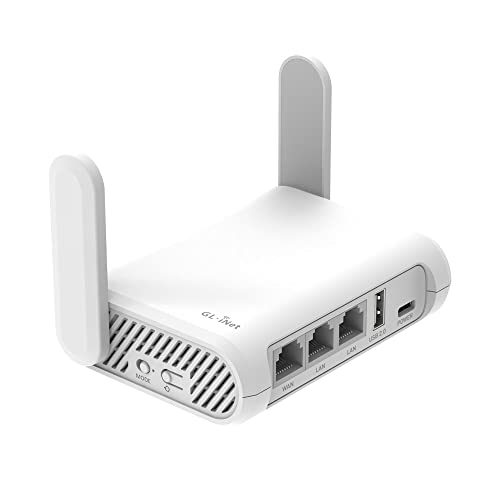
- Creates your own dual-band network from a hotel, café, Ethernet, or public Wi-Fi connection
- Includes OpenVPN and WireGuard support for compatible VPN subscriptions
- Lets you assign the side switch to VPN control after configuring it in the admin panel
When the Connection Drops Mid-Email
A weak signal can interrupt your VPN just as it can interrupt a video call. A kill switch is designed to stop internet traffic if the VPN drops, rather than let it continue outside the tunnel.
Check your app's instructions and turn the feature on where available. Its behavior can vary by device and app, so a familiar name doesn't guarantee identical protection everywhere.
Our kill switch guide explains the setting in more detail. It's especially useful to understand before you start moving between networks on a trip.
Once you've finished, disconnect from the hotspot and turn off automatic joining for networks you don't plan to use again. Leaving file sharing off on public networks is a sensible habit, too.
Use a VPN when you want that extra network privacy, keep your device updated, and pay attention to what a login page asks for. Then you can return to the more pressing café problem: whether your coffee has gone cold.